
Analytics
Read update trends, package distribution, version health and device events before expanding a rollout.
Updated 2026-09-14
On this page
Open analytics
Sign in and choose Live metrics from the sidebar. The page contains request overview, package distribution, version health, devices and event details.
Select the released application, keeping platform applications separate.
Select the release channel, or all channels for an overall view.
Choose the last 24 hours, including the release time.
Refresh and read the sections from top to bottom.
The screenshots below use actual Pakta console components with demonstration data.
Overview: follow update progress
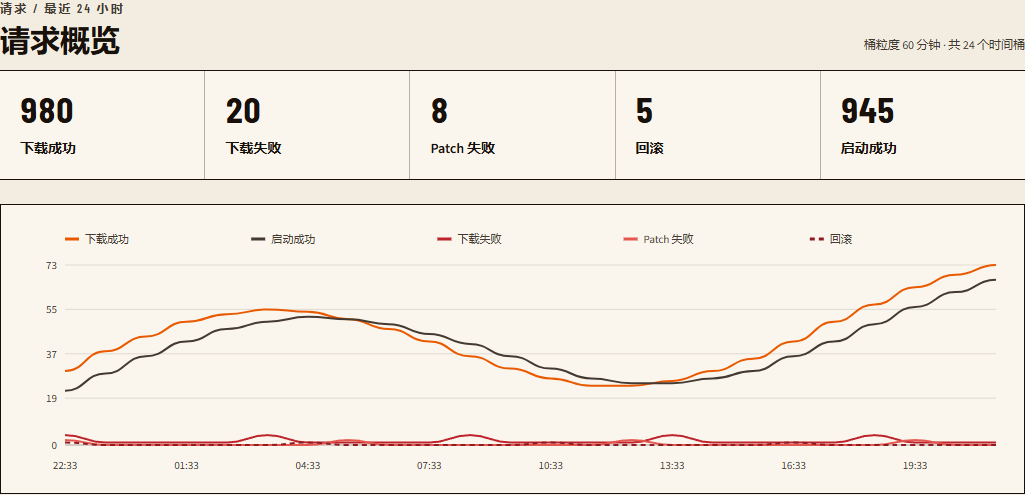
| Counter | Event | Meaning |
|---|---|---|
| Download success | download_success | Files downloaded; activation is not yet confirmed |
| Download failure | download_fail | Download failed; investigate network and file URLs |
| Patch failure | patch_fail | Patch or switching failed; a later full download may still succeed |
| Rollback | rollback | The device recovered after a failed update launch |
| Startup success | mark_success | The SDK confirmed the running update |
Hover over the five-line trend chart to inspect counts at a time point. Find whether failures started after publication, then inspect individual versions.
A phone can send several events. Request counts here are neither new users nor every request to the update-check endpoint. Downloads and startup confirmations may occur in different time windows.
Time range and chart controls
Select 24 hours, 72 hours, 7 days or a custom range. Custom ranges must have increasing endpoints and span at most 8 days.
The interval is the number of minutes summarized by each point. Use 5 minutes for a brief incident, 30 or 60 for longer trends, or leave it automatic.
Selecting an event type highlights its curve and filters event details. Overview totals and version health retain all types for comparison.
Refresh reloads the current selection. Recheck filters after changing the application, channel or range.
For a spike following a 14:00 release, select a two-hour range around 14:00 and a five-minute interval to locate its start.
Package distribution: find active versions
Switch Update package / Native package under package distribution.
| Dimension | Grouping | Question it answers |
|---|---|---|
| Update package | Update hash | Has the new update begun reporting? Are older updates still active? |
| Native package | Native version | Which installed versions still report and need the fix? |
Rows display request counts and their share of all package requests. The first six packages are shown, with remaining packages summarized below. Bar lengths are relative to the leading package, not installed-user coverage.
If native 1.0.0 still reports heavily but the fix targets only 2.0.0, increasing the 2.0.0 percentage will not repair 1.0.0 devices. Check release targets.
Version health: decide whether to expand

Find the release hash and native version, then compare counts and rates with a stable update.
| Rate | Formula | Example |
|---|---|---|
| Download failure | failures / (successes + failures) | 20 / (980 + 20) = 2% |
| Rollback | rollbacks / (startup confirmations + rollbacks) | 5 / (945 + 5) ≈ 0.5% |
A zero denominator produces zero, not proof of health. Small samples require more observation and testing.
More download failures: inspect network, HTTP and file errors.
More patch failures with successful downloads: investigate fallback and confirm full downloads succeed.
More rollbacks: stop expanding; investigate startup errors and health confirmation.
Sustained successful downloads and startups, with verified business flows: expand according to the release plan.
Devices: investigate one phone
Find the device identifier under Devices. Developers can read it with getUpdateMetadata().uuid.
Inspect OS, five event counts, both rates, and first/last report times.
Click the row to filter event details by that device. A selected-device chip appears above.
Follow the sequence from download to confirmation or rollback.
Click the row again or remove the chip to clear the selection.
The device table has 20 rows per page. Device selection filters event details; it does not turn the overview into a single-device dashboard.
Event details: inspect failures
Rows include time, type, device, OS, native version, build information and details. Filter by event type and verify the update hash and timestamp.
| Symptom | Check next |
|---|---|
| Download without startup confirmation | Full restart, activation strategy and markSuccess |
| Device rollback | Failing hash and startup errors; see error diagnosis |
| Many simultaneous download failures | Download host, object availability and network |
| No records | Clear type/device filters; check application, channel, range and SDK reporting |
Details are retained for seven days by default, subject to server configuration. Save incident times, device identifiers, native versions and hashes promptly.
Finish release verification
Verify the new content on a test phone, find its download and startup-confirmation records, and test key business screens.
Then expand in the console. If something fails, stop or recover the release and preserve event evidence.
disableTelemetry: true disables the relevant client reports. For an empty page, confirm reporting is enabled and the device has run the Release update flow with working server connectivity.